
📖 About This Article
This guide provides step-by-step instructions and helpful resources for managing passkeys used with the Sign-On (SSO) Dashboard. It explains how to access, update, and remove passkeys on different devices, how to troubleshoot common issues, and where to get additional support, both internally and through third-party services like Apple, Google, and Microsoft.
Passkeys offer a faster, more secure alternative to traditional passwords by using biometrics or device-level authentication.
✉️ Initial Passkey Email & Setup
When you’re added to the Dashboard system for the first time, you’ll receive an invite email from Solid Earth. Here's what to expect:
-
Subject: The email will invite you to set up your account.
-
Secure Token Link: The message includes a secure link valid for 30 days.
-
Choose Your Method:
-
You can create a passkey (recommended for ease and security).
-
Or, you can opt to create a traditional password.
-
Note: You can create a unique passkey for each device.
-
Once complete, you’ll be automatically logged into your personalized dashboard and remain logged in for 30 days on that device.
💻 How Do I Access or Manage My Passkeys?
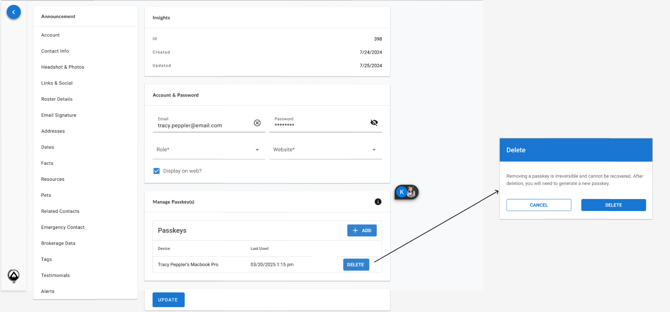
You can manage your passkeys via the Dashboard:
-
Log in at https://(myMLS/Assn.).mysolidearth.com.
-
Click your profile icon at the top right.
-
Select “My Account” → “Manage Passkeys.”
-
View all devices that have an active passkey.
❌ How Do I Remove a Passkey from a Device?
To delete a saved passkey:
-
Go to “Manage Passkeys” under “My Account.”
-
Identify the device in question and select the remove option.
-
You can then set up a new passkey upon your next login.
✅ How Do I Add a Passkey to a Device?
- Go to “Manage Passkeys” under “My Account.”
- Click the "Add" button

For staff: You may also remove a member’s passkey via the admin panel by editing the member’s account.
🔁 What Happens When My Passkey Expires?
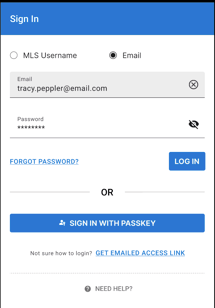
Passkeys remain active for 30 days. After expiration:
-
If you used a password, sign in using your MLS ID + password.
-
If you used a passkey, choose “Sign In With Passkey.”
-
Or use “Get Emailed Access Link” for temporary access.